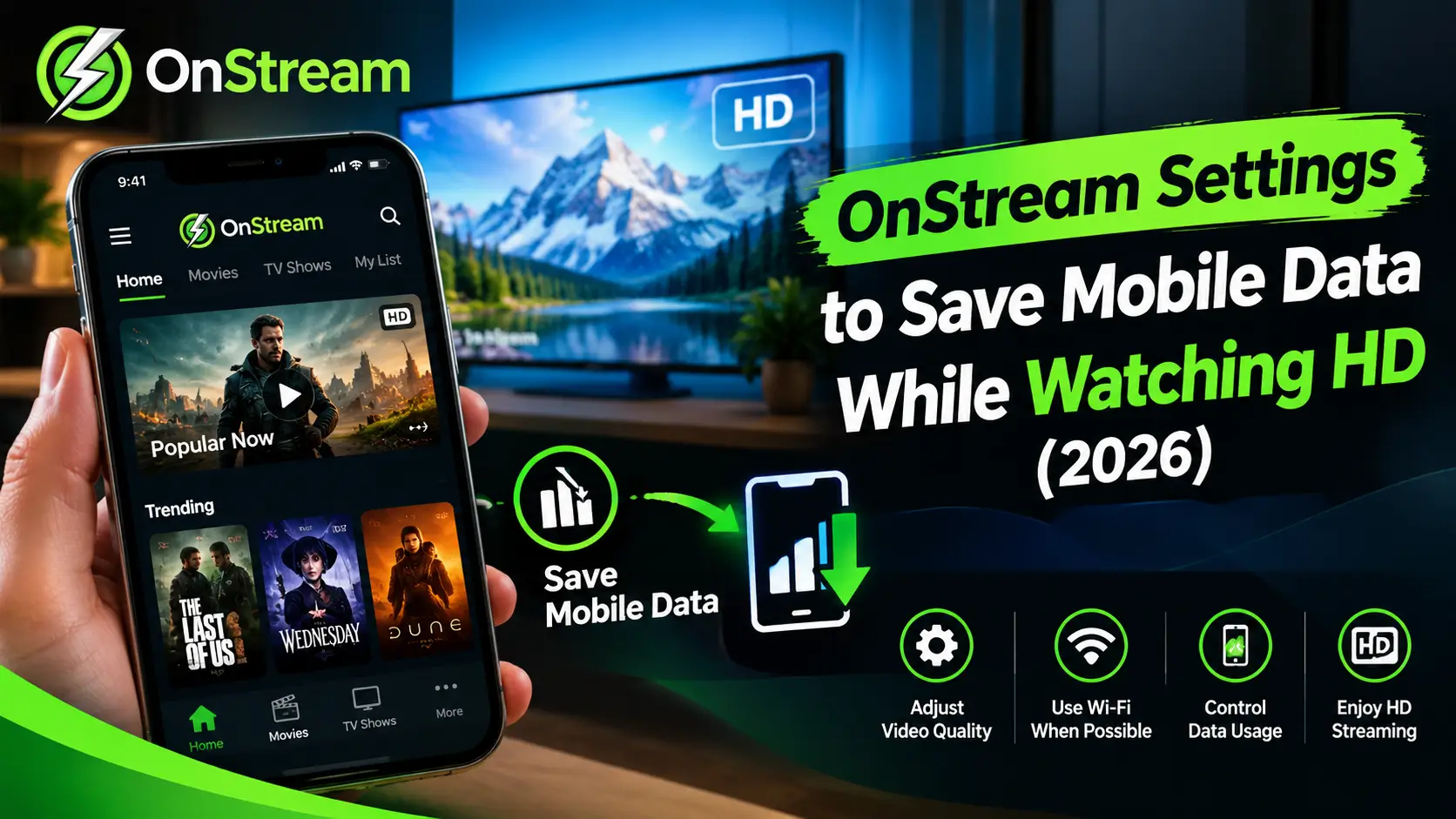
OnStream Settings to Save Mobile Data While Watching HD (2026)
OnStream Settings
Nothing kills a mobile data pack faster than one movie night. A single HD film can eat 3 GB before the ending. The good news is simple. The right onstream data saving settings cut that use by half. Your picture still looks sharp on a phone screen.
This guide shows every setting that matters, step by step. You will learn the best quality for small screens. You will also see how much data each quality level uses per hour. Pick your plan size. Set the app once. Then stream without watching the data meter.
Why HD Streaming Eats Your Mobile Data So Fast
Video data grows with picture quality. A sharper picture carries more detail in every frame. Your phone pulls all that detail through the mobile network. One hour at 1080p can use near 3 GB. The same hour at 480p stays under 1 GB.
Most apps pick the highest quality your speed allows. They never ask about your data pack. So a fast 4G signal can hurt you more than a slow one. It unlocks HD streams by default. Your pack drains while the picture looks only slightly better.
| Quality | Data Used Per Hour (Approx.) |
| 360p | 0.3 GB |
| 480p | 0.7 GB |
| 720p | 1.5 GB |
| 1080p | 3 GB |
The Best OnStream Data Saving Settings to Change First
Open OnStream and tap the settings icon before you play anything. Look for the playback quality option first. This single switch controls almost all your data use. The best onstream data saving settings always start here. One change here beats ten small tricks later.
Set the default quality to 480p for mobile data. The picture stays clear on a phone screen. Your eyes can barely spot the gap from 720p at this size. Save 720p for Wi-Fi only. This one habit can double the life of your data pack.
Pick the Right Quality for Your Screen Size
Small screens hide small flaws. A 480p stream looks clean and sharp on most phones. Even many tablets handle 480p well for shows and sports. Save true HD for the big TV at home. There the jump in quality is easy to see.
Match the quality to the show as well. Cartoons and talk shows need very little detail. Fast action films and live matches look better one step higher. Drop back down when the show ends. This simple habit keeps your average use low all month.
Stop Autoplay and Turn Off Previews
Autoplay is a silent data thief. The next episode starts before you decide to watch it. A quick break can burn 20 minutes of video you never saw. Turn autoplay off in the settings. Every episode should start only when you tap play.
Preview videos on the home screen waste data too. Many apps load short clips while you browse titles. Switch previews off if your app shows that option. Your home screen will feel calmer. Your data pack will last days longer each month.
Use Android Data Saver Alongside the App
Your phone has its own guard for hungry apps. Open Android settings and find Data Saver under network options. Turn it on before a long trip. It stops apps from sipping data in the background. OnStream then uses data only while you watch.
You can also set a data warning and a hard limit. The phone alerts you near your chosen line. It can block mobile data once you cross the limit. No bill shock waits at month end. This safety net works even when you forget the in-app settings.
Download on Wi-Fi and Watch Offline
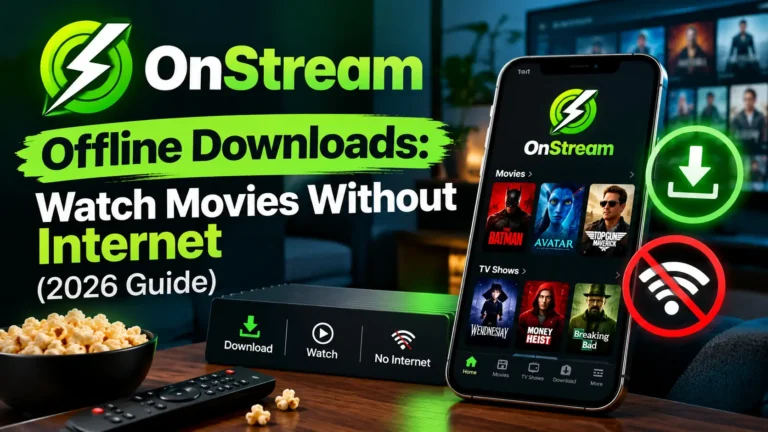
The cheapest stream is the one you never load on mobile data. Grab your shows at home on Wi-Fi before you leave. Watch them on the bus or train with mobile data fully off. Our offline downloads guide shows the exact steps: https://onstremdownloads.pro/onstream-offline-downloads/ It works for films and full series.
Plan downloads like a weekly habit. Pick two or three shows every Sunday night. Your week of travel viewing is then free of data cost. Delete watched files to keep storage open. A small routine like this can save more data than every other tip combined.
Check Which App Is Really Eating Your Data
Guesswork wastes money. Measure first instead. Android shows data use per app under network settings. Check the chart once a week. You may find a social app eating more than your streams. The numbers tell you where the real leak sits.
Compare the chart before and after your changes. One week of careful settings should show a clear drop. If the number stays high, some other app is the culprit. Fix that app next. Data control becomes easy once you watch the meter.
The Best Settings Combo for Small Data Plans
Small daily packs need every trick working together. Start with the onstream data saving settings from the second section above. Then add this combo on top. Together they stretch a 1 GB day pack across hours of viewing. You stop rationing every episode.
| Setting | Best Choice |
| Default quality (mobile data) | 480p |
| Default quality (Wi-Fi) | 720p |
| Autoplay | Off |
| Previews | Off |
| Android Data Saver | On |
| Downloads | Wi-Fi only |
Bigger packs give you more freedom. A 2 GB daily pack can handle 720p for one film. Drop to 480p for series and daily shows. The mix keeps quality where it counts. Your pack survives till night without stress.
Mistakes That Waste Your Mobile Data
The biggest mistake is trusting the Auto quality setting. Auto chases the best picture, not the best value. A strong signal pushes it to 1080p in seconds. Your data drains while you notice nothing. Lock the quality yourself and stay in control.
Background downloads are another quiet trap. Some apps fetch the next episode while you sleep. Turn off background data for streaming apps in Android settings. And recheck your onstream data saving settings after every app update. Updates can reset your choices to the thirsty defaults.
An Honest Note About OnStream in 2026
Honesty matters here. Many users report that OnStream streams fail to load this year. Reports say the old servers look shut down. TroyPoint tracks the same sad story: https://troypoint.com/onstream-apk-1/ No setting can fix a dead server. These tips help any copy of the app that still runs on your phone.
Stay away from sites selling a “fixed” new version for money. Most such files are fake. Some carry malware. Our safe download guide shows how to check any file first: https://onstremdownloads.pro/onstream-safe-download-guide/ Good settings protect your data. Careful downloads protect your whole phone.
Final Words
Mobile data feels endless until the warning SMS lands. The onstream data saving settings in this guide keep that day far away. Set your quality once. Kill autoplay. Download on Wi-Fi. Your pack will thank you every single week.
Start with just two changes today. Lock 480p for mobile data and switch Data Saver on. Watch your usage chart after one week. The drop will surprise you. Then add the rest of the combo when you are ready for full control.