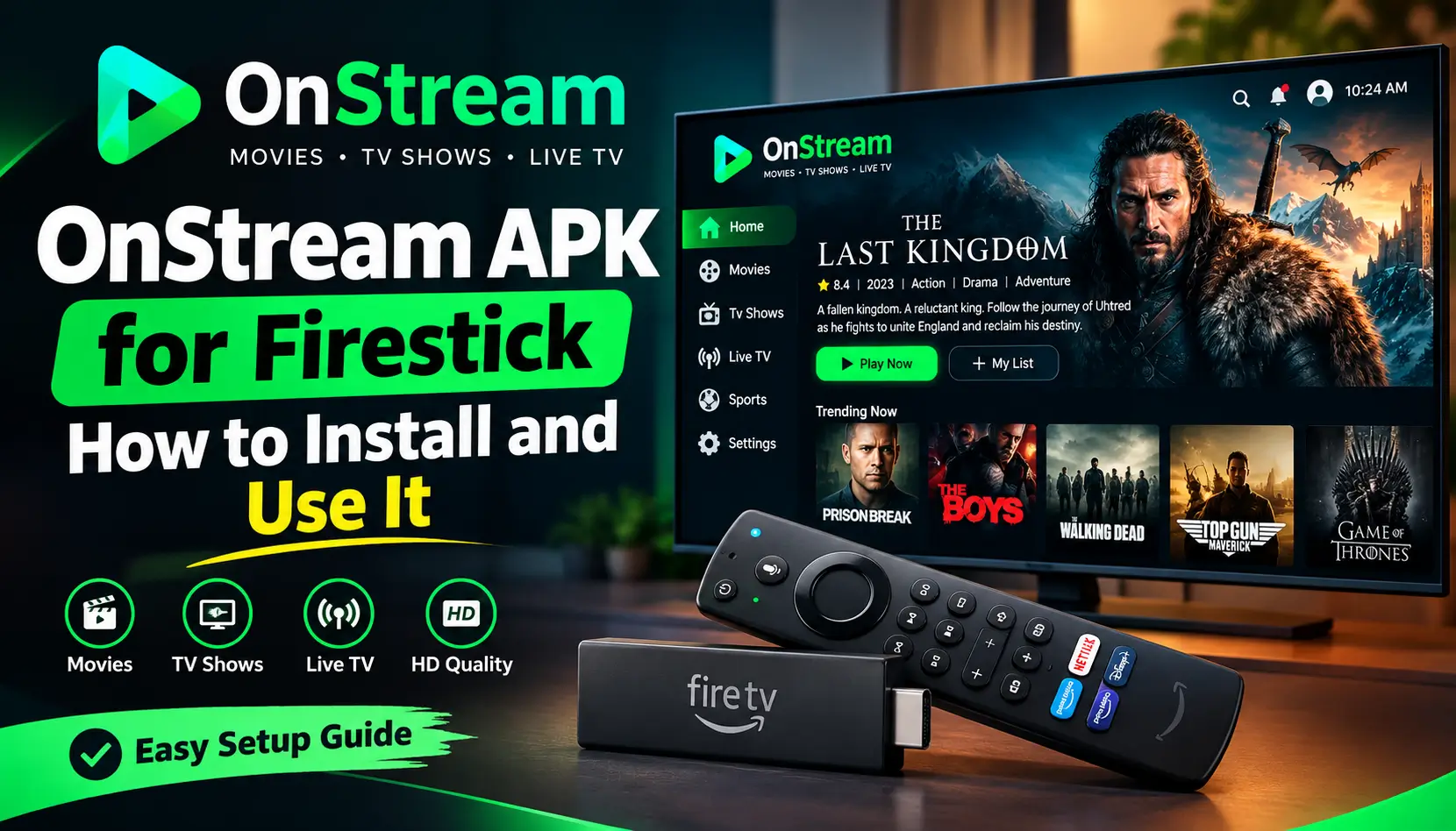
OnStream APK for Firestick How to Install and Use It
OnStream APK for Firestick can be installed with the Downloader app when the app is not available in the Amazon Appstore. You first need to allow apps from unknown sources and then use Downloader to get the APK file.
The setup is simple if you follow each step carefully. This guide explains how to install OnStream on Firestick and how to use it after installation.
What Is OnStream APK for Firestick
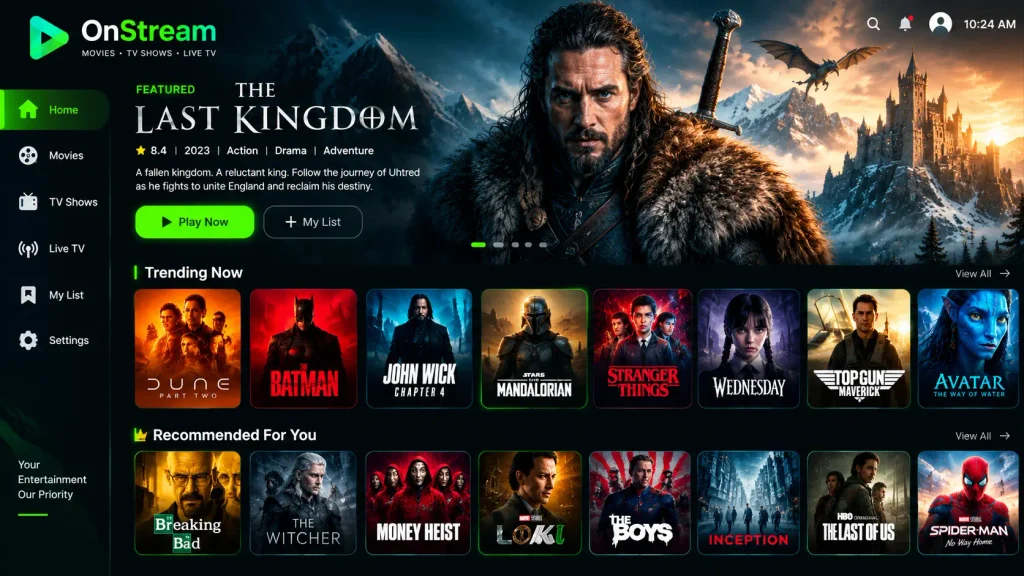
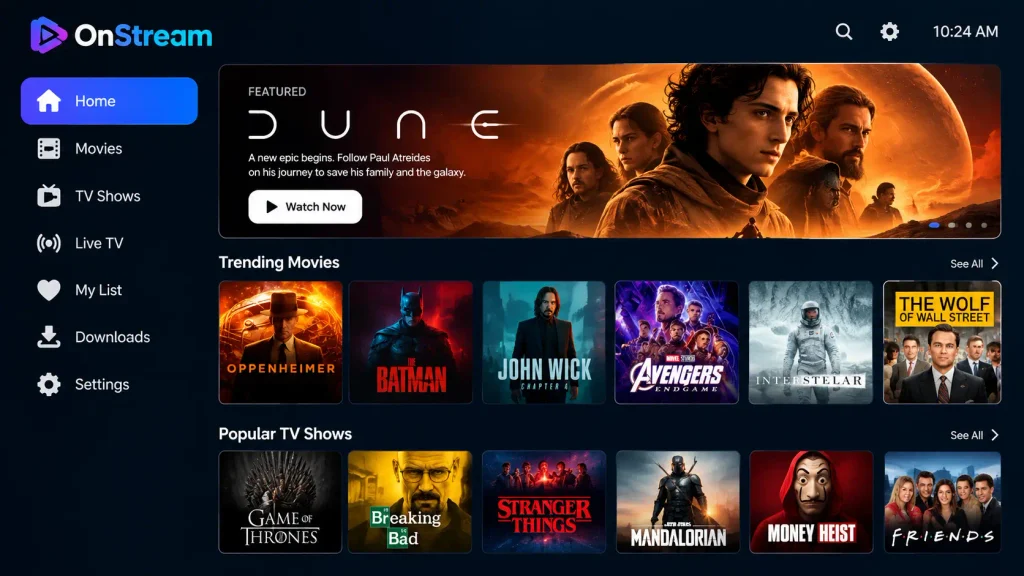
OnStream is a third party streaming app that can be used to browse movies and TV shows on supported devices. It is designed with a simple interface so users can find content without a complicated setup.
Some versions of the app may offer features such as subtitles, multiple streaming sources favorites and content downloads. Features can change between versions so the exact options may not always be the same.
OnStream is not normally listed in the Amazon Appstore which means Firestick users may need to install it using another method such as Downloader.
What You Need Before Installing OnStream
Before you start the installation make sure your Firestick is ready.
You will need
- A Firestick or compatible Fire TV device
- A stable internet connection
- The Downloader app
- Enough free storage
- Permission to install unknown apps
It is also a good idea to remove files you no longer need because Firestick storage can be limited.
How to Enable Unknown Apps on Firestick
Firestick may block APK files unless you allow the Downloader app to install them. You can change this setting from the Fire TV settings.
Follow these steps
- Open your Firestick Home screen
- Go to Settings
- Select My Fire TV
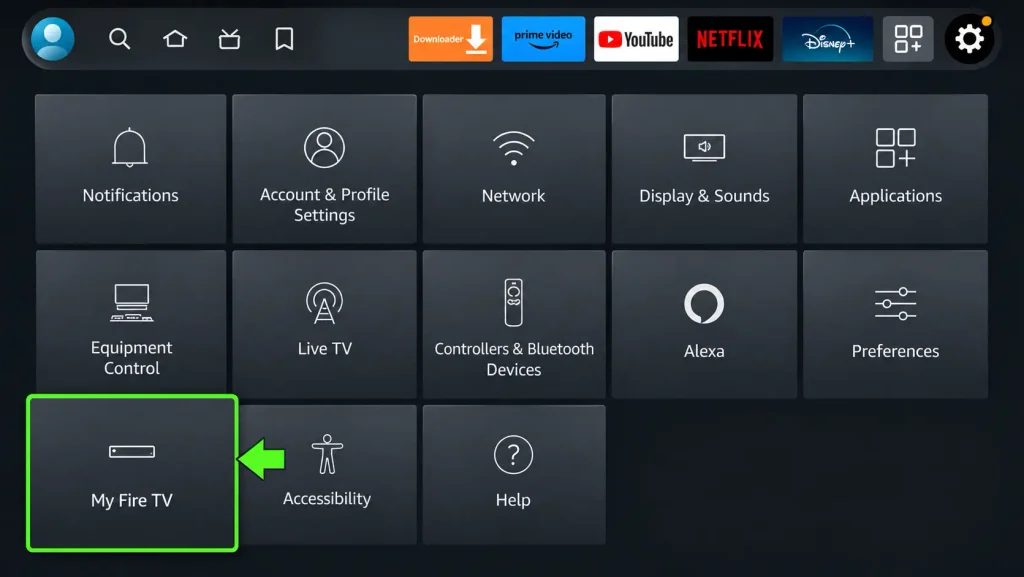
- Open About
- Select your Fire TV Stick name
- Click it about seven times
- A developer message should appear
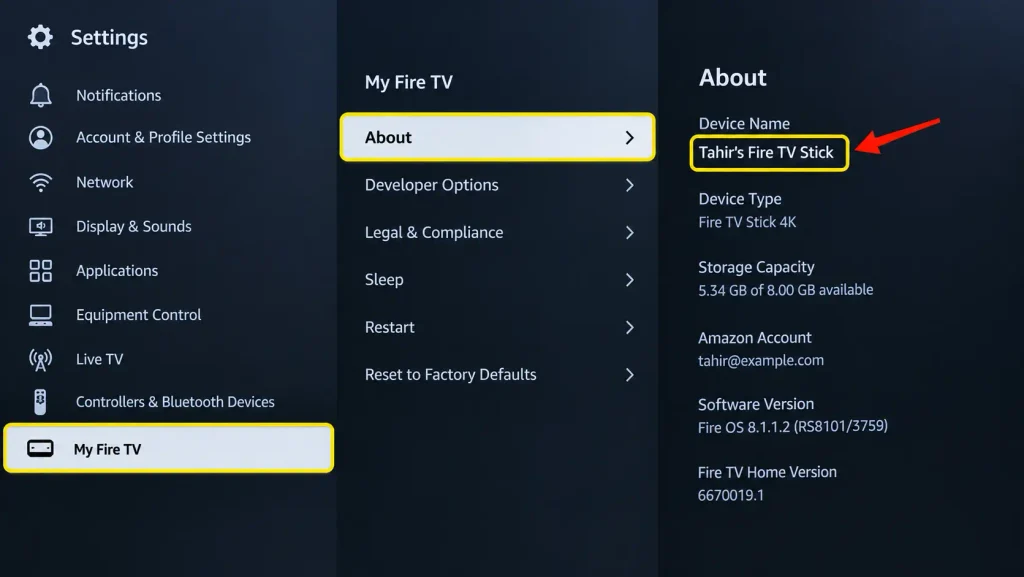
- Go back to the previous menu
- Open Developer Options
- Select Apps from Unknown Sources
- Turn it on
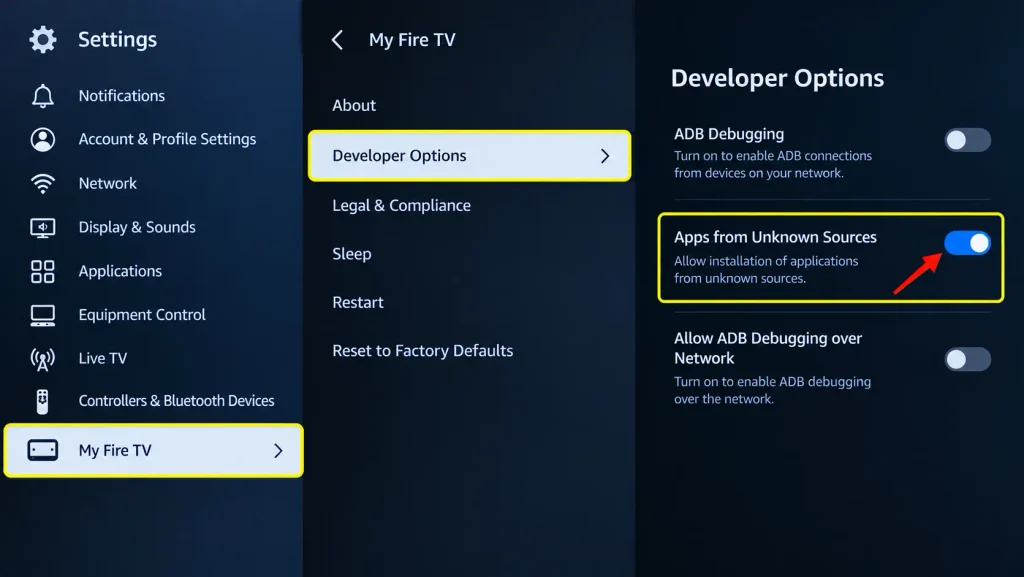
On some Firestick versions the setting may appear as Install Unknown Apps. The name can be different depending on the Fire TV software version.
How to Install Downloader on Firestick
Downloader is useful for getting APK files that are not listed in the Amazon Appstore.
To install it
- Go back to the Firestick Home screen
- Select Find
- Choose Search
- Type Downloader
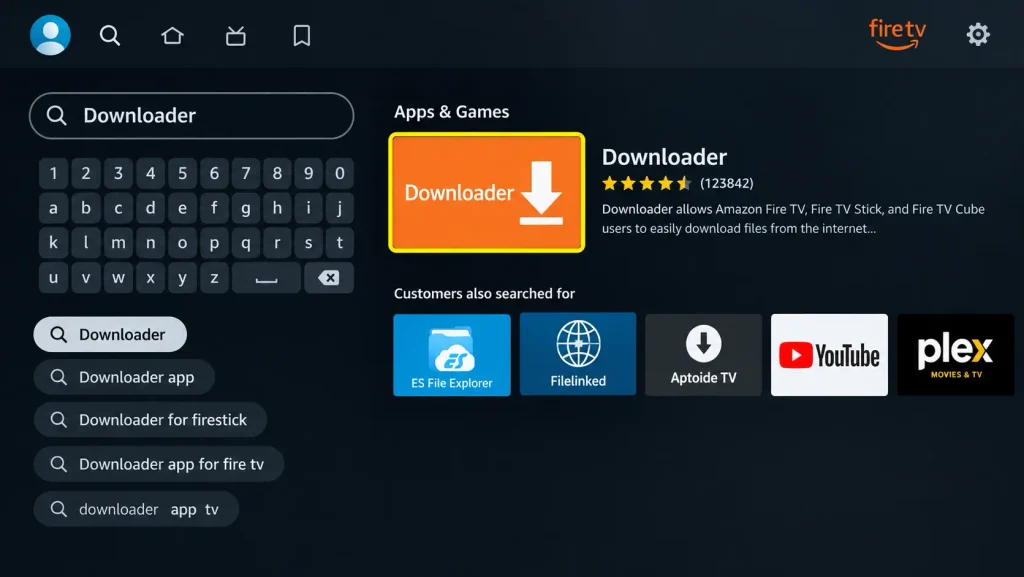
- Select the Downloader app
- Choose Get or Download
- Wait for the installation to finish
- Open Downloader
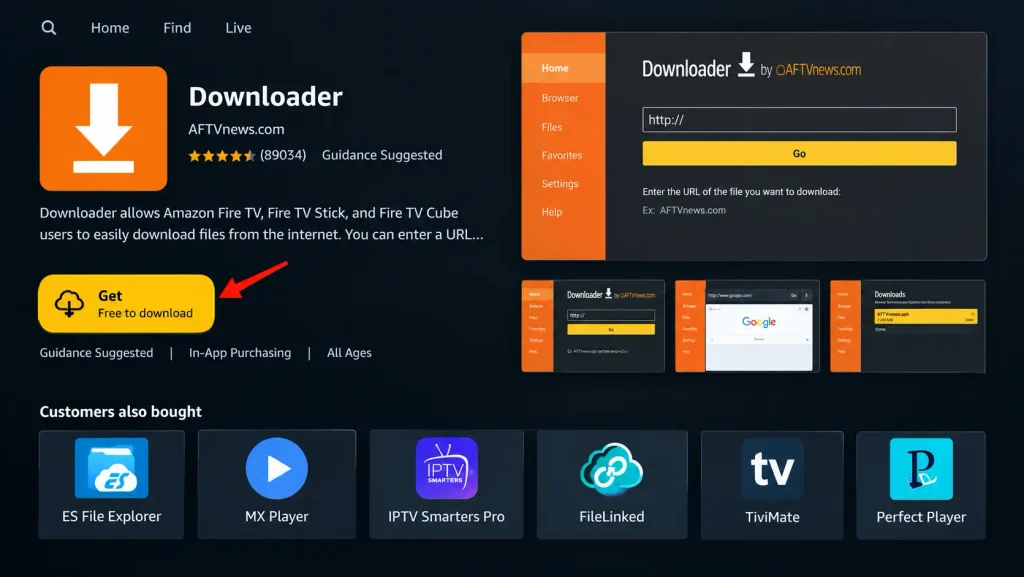
When Downloader opens for the first time it may ask for permission. Allow the required permission so you can continue with the download.
How to Install OnStream APK for Firestick
Once Downloader is ready you can start the OnStream installation.
Open Downloader and look for its search or URL field. Enter the OnStream Downloader Code 730116 and select Go.
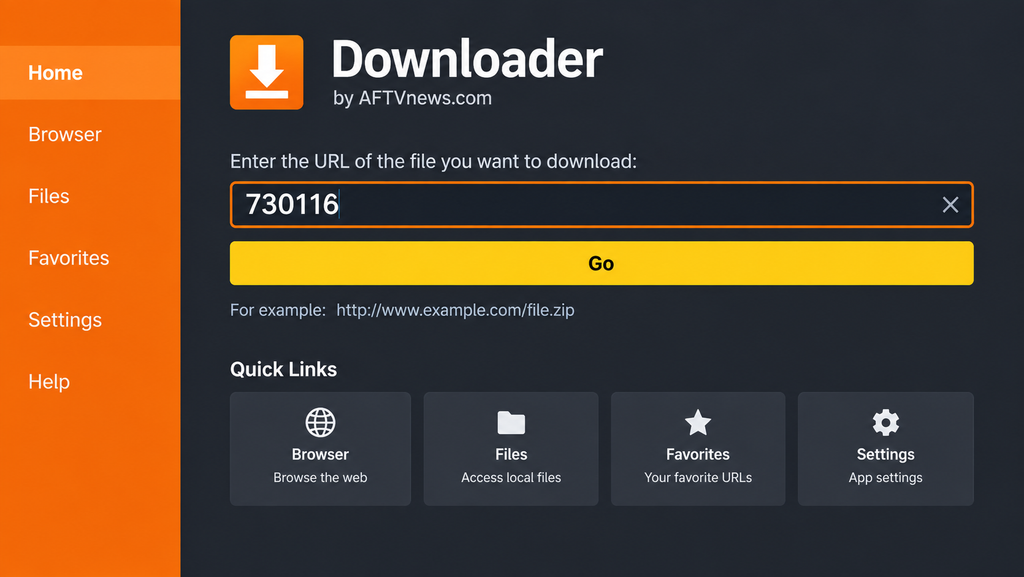
The download page should open. Look for OnStream in the Movies and TV Shows Apps section and select it. Wait until the APK file finishes downloading.
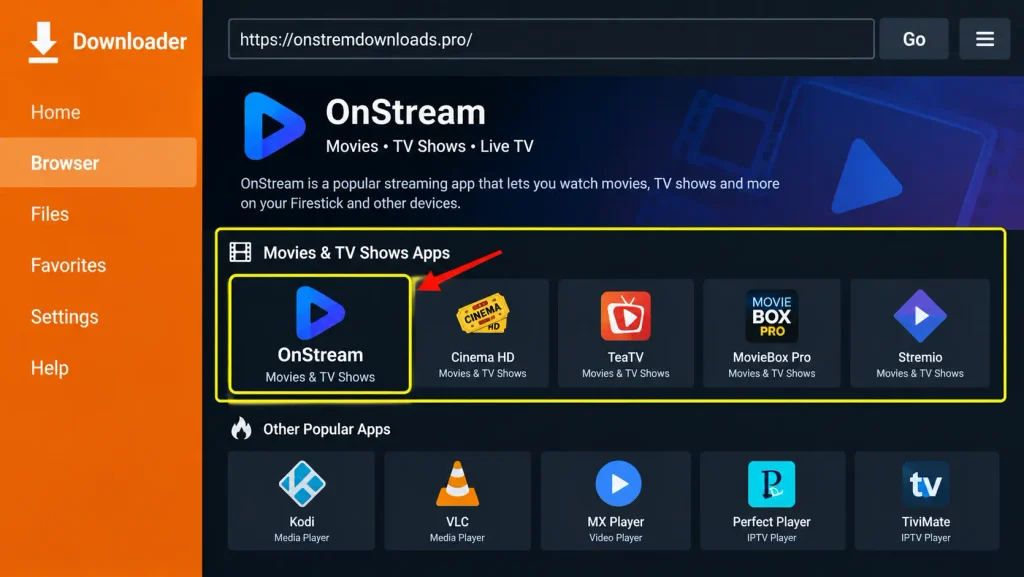
After the download is complete
- Select Install
- Wait for the installation to finish
- Select Done
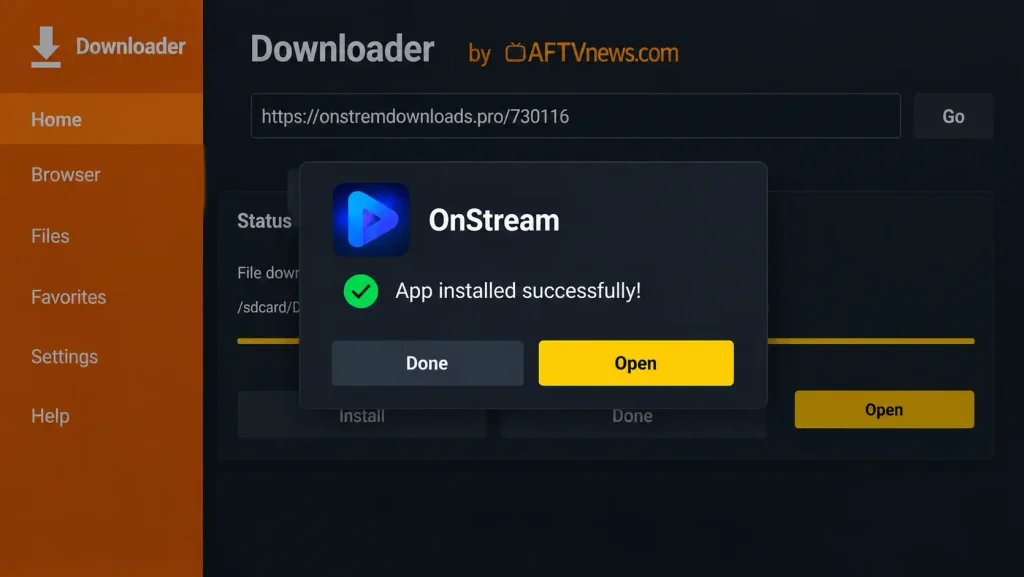
- Choose Delete when Downloader asks about the APK file
- Select Delete again to confirm
Deleting the downloaded APK after installation can help save storage space on your Firestick.
How to Open OnStream on Firestick
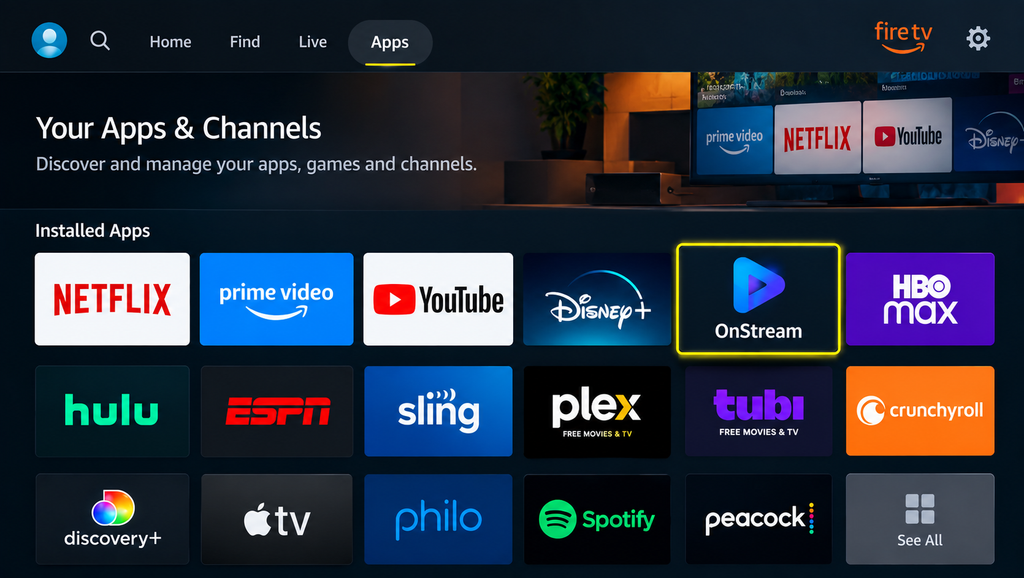
After installation you can find OnStream from your Firestick apps.
Go to the Apps section and look through your installed apps. If OnStream is near the end of the list you can move it to a more visible position.
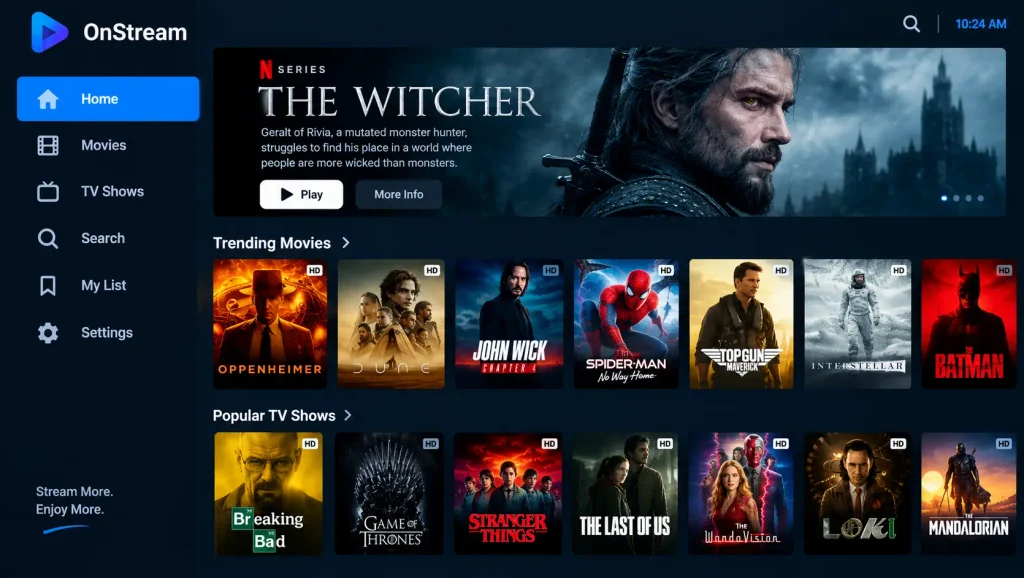
Open the app and use your Firestick remote to move through the available sections. The exact layout may depend on the version you installed.
How to Use OnStream on Firestick
Using OnStream is fairly simple when the app is working correctly.
Open the app and browse the available movie or TV show sections. Select a title that you want to watch and choose an available streaming source if more than one is shown.
Some versions may also provide subtitles multiple sources favorites or download options. These features are not guaranteed to be the same in every version.
How to Turn On Subtitles
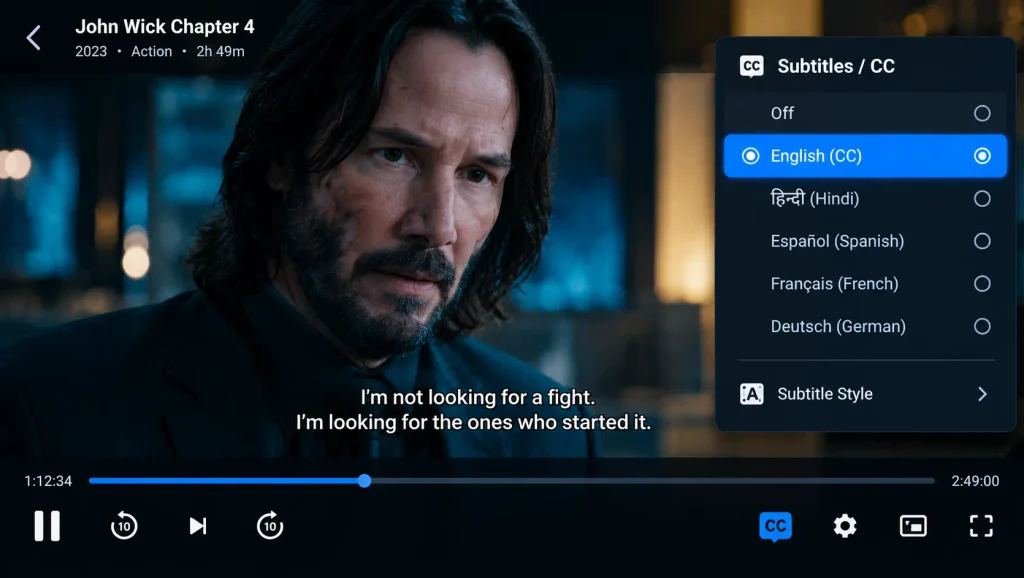
If subtitles are available you can usually enable them while a movie or show is playing.
Start the video and open the playback controls. Look for the subtitle option and choose your preferred language or subtitle file.
The available languages and subtitle options can depend on the title and app version.
Why OnStream May Not Work on Firestick
Sometimes an APK can install correctly but still fail to load or play content. This can happen because of app changes broken streaming sources internet problems or compatibility issues.
One competitor guide currently reports that a particular OnStream version stopped working while another older guide also marks its OnStream instructions as no longer working. This shows that availability can change over time and that an installation method or version may not keep working forever.
If OnStream does not work try these basic steps
- Check your internet connection
- Restart the Firestick
- Close other running apps
- Clear the OnStream app cache
- Check available Firestick storage
- Try another available streaming source
- Make sure you are using a compatible app version
If the problem continues the current OnStream version may no longer support your Firestick or its available sources may be offline.
How to Clear OnStream Cache on Firestick
Clearing the cache can help when an app becomes slow or starts crashing.
Go to Firestick Settings and open Applications. Find Manage Installed Applications and select OnStream.
Choose Clear Cache and then open the app again.
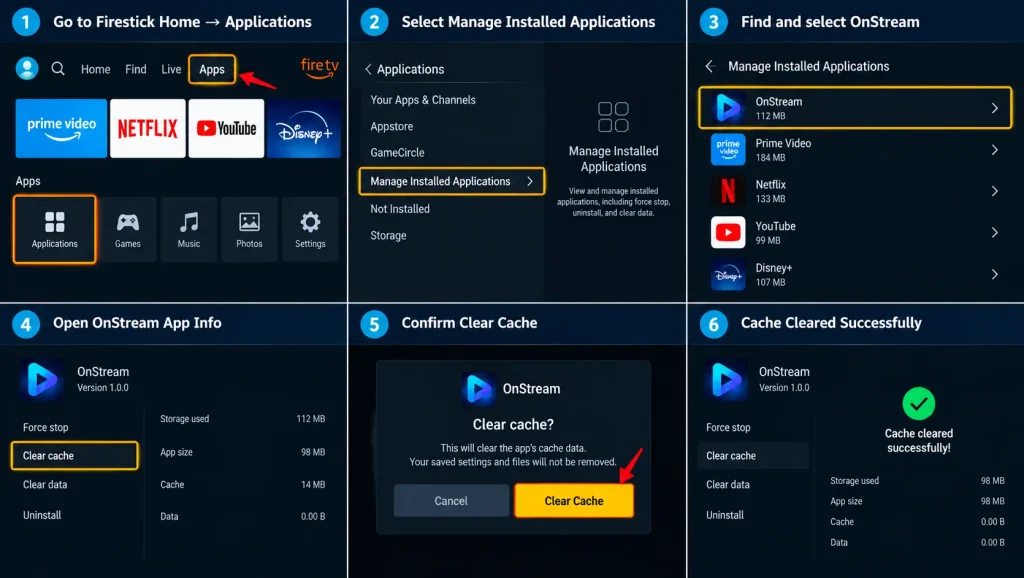
Do not select Clear Data unless you are comfortable resetting the app because clearing data can remove saved app information.
Is OnStream Safe to Use on Firestick
OnStream is a third party APK rather than a normal Amazon Appstore app. This means you should be careful about where you get the APK file.
Third party streaming apps can also provide links to content from different sources. The legality of that content can vary by country and by the rights held for each title. The safest approach is to watch content that you have permission to access.
Avoid downloading APK files from unknown websites and do not provide personal information unless you know why the app needs it.
Does OnStream Need an Account
Some information about OnStream says that registration is not required for basic use. However this can depend on the version of the app you install.
If your version shows a login or account option follow the instructions shown inside that version rather than assuming every version works in the same way.
Can You Delete the APK After Installation
Yes. Once OnStream has been installed you normally do not need to keep the downloaded APK file.
Downloader may show a Delete option after the installation. Removing the APK can free some storage on your Firestick which is useful because Fire TV devices have limited space.
The installed app will remain on your Firestick after you delete the original APK file.
Final Words
Installing OnStream APK for Firestick requires a few simple steps. First enable the option for unknown apps then install Downloader and use it to download the OnStream APK.
After installation you can open OnStream from the Firestick apps section and browse the available movies and TV shows. If the app does not work check your internet connection clear the cache and restart your Firestick.
Keep in mind that third party apps and their streaming sources can change or stop working. Always use a trusted source and watch content that you are legally allowed to access.