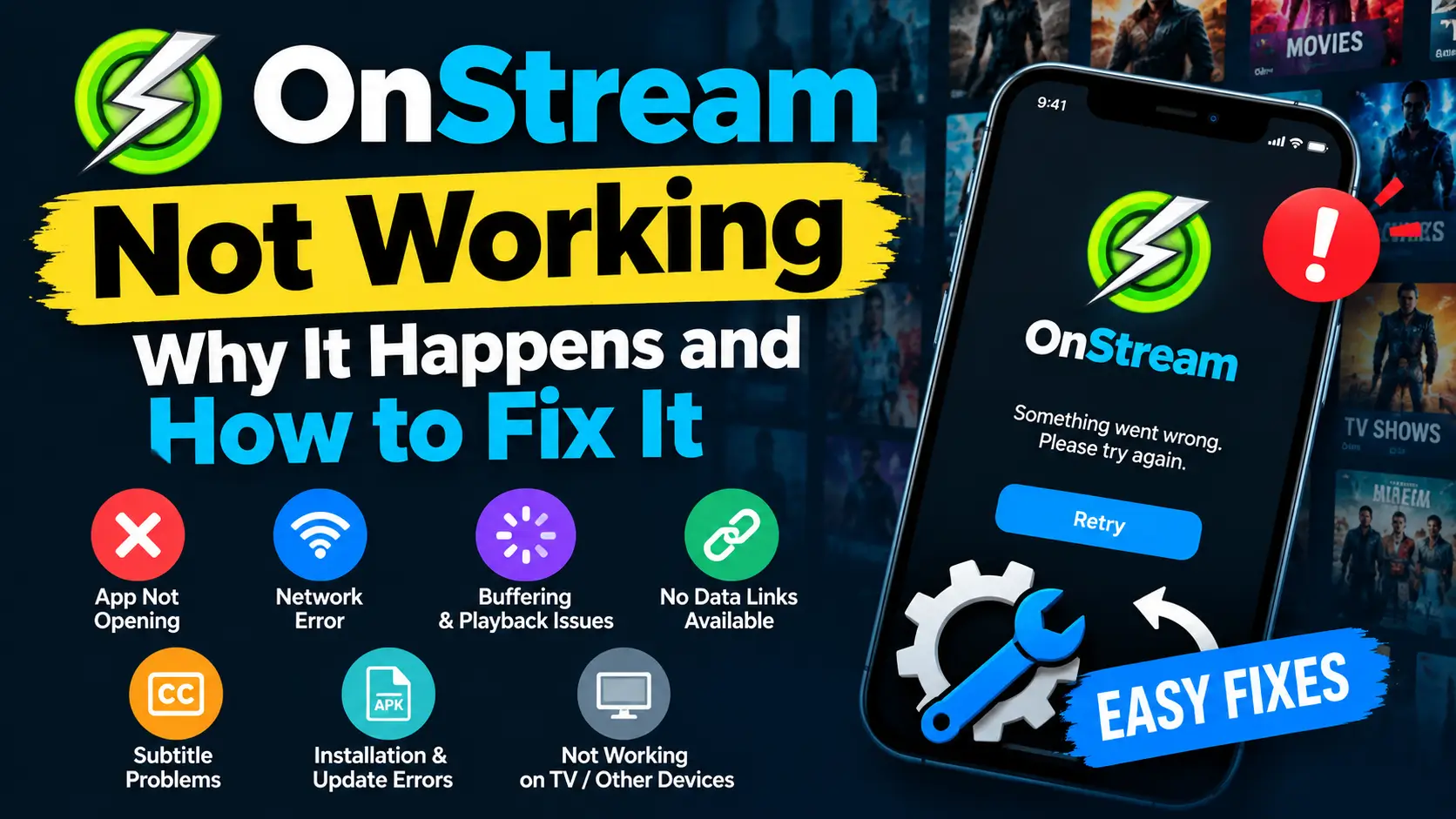
Why OnStream Not Working How to Fix It
Why OnStream Not Working?
If OnStream is not working, you may see problems such as the app not opening, videos not loading, buffering, black screens, or missing subtitles. Sometimes, the APK may also fail to install or update.These problems can happen because of a weak internet connection, outdated app files, low device storage, or unavailable streaming sources.
The good news is that you can try several simple fixes before reinstalling the app.In this guide, you will learn how to fix OnStream not working on Android phones, Android TV, Google TV, FireStick, and other compatible devices. You will also learn how to identify the real cause of the problem.
Quick Fixes for OnStream Not Working
Before trying advanced solutions, start with these basic troubleshooting steps. They can help fix common app problems without requiring a fresh installation.
- Check your internet connection: Open another app or website to see if your internet is working.
- Restart OnStream: Close the app completely and open it again.
- Clear the app cache: Remove temporary files that may cause loading or playback issues.
- Restart your device: This can resolve temporary software problems.
- Check available storage: Delete unnecessary files if your device is running out of space.
- Update the app: If a newer version is available from a trustworthy source, check whether it resolves the issue.
If these steps do not work, identify the specific problem and follow the relevant solution below.
Why Is OnStream Not Working?
OnStream may stop working for several reasons. The cause depends on your device, internet connection, app version, and the type of error you see.
Common reasons include:
- Internet problems: A weak or unstable connection can prevent videos and sources from loading.
- Corrupted cache files: Temporary app data may cause crashes or other errors.
- Outdated app version: Older versions may have compatibility issues.
- Device limitations: Low storage, limited memory, or outdated software can affect performance.
- Unavailable streaming sources: A particular movie or episode may have no working links.
- Server problems: The service or its sources may be temporarily unavailable.
- Installation errors: Incorrect APK files or disabled installation permissions can prevent the app from working.
Finding the cause first can save time and help you avoid unnecessary troubleshooting.
How to Fix OnStream Crashing or Not Opening
If OnStream closes unexpectedly, freezes on startup, or refuses to open, try the following methods.
1. Force Stop and Restart the App
Sometimes, the app gets stuck because of a temporary error.
- Open your device’s Settings.
- Go to Apps or Applications.
- Select OnStream.
- Tap Force Stop, if available.
- Open the app again.
The menu names may vary depending on your device.
2. Clear the OnStream Cache
Cached files help apps load faster, but damaged temporary files can sometimes cause problems.
- Open Settings on your device.
- Select Apps and choose OnStream.
- Open Storage or Storage and Cache.
- Tap Clear Cache.
- Launch the app again.
Start with Clear Cache instead of Clear Data. Clearing data may remove saved app settings and other locally stored information.
3. Restart Your Device
Restart your phone, TV, or streaming device. This can close background processes and free up system resources.
After restarting, open OnStream and check whether it works normally.
4. Reinstall the App
If OnStream continues to crash, reinstalling it may help resolve damaged installation files.
Before reinstalling:
- Make sure your device has enough free storage.
- Check that the APK file comes from a source you trust.
- Confirm that the version is compatible with your device.
- Remove the existing installation if necessary.
- Restart your device after installation.
Avoid installing random APK files from unfamiliar websites because they may contain harmful software.
How to Fix No Data Links Available and Sources Not Loading
The “No Data Links Available” error usually means the app cannot find a usable source for the selected content. It does not always mean that your internet connection is broken.
1. Try Another Movie or Episode
Open a different movie or episode and check whether its sources load.
- If other titles work, the original title may have unavailable sources.
- If no titles work, the problem may involve the app, your connection, or the source service.
2. Check Your Internet Connection
Open another streaming app or website. If other services also fail to load, restart your router or reconnect to your Wi-Fi network.
You can also switch between Wi-Fi and mobile data, where available, to check whether the connection is causing the problem.
3. Clear the Cache
Old temporary files can sometimes interfere with loading sources. Follow the cache-clearing steps explained earlier, then reopen OnStream.
4. Check Whether the Service Is Available
The app or its streaming sources may be temporarily unavailable. If several titles fail on different networks, the problem may be outside your device.
Wait and try again later. A VPN cannot fix a server outage, and you should not assume that every source error is caused by regional restrictions.
How to Fix Buffering, Playback Failed, Black Screen, and Subtitle Problems
Playback problems can have different causes. Use the following table to identify the issue and choose the right fix.
| Problem | Possible cause | What to try |
| Constant buffering | Slow or unstable internet | Restart your router and close apps using the connection |
| Playback failed | Broken source or incompatible video | Try another available source or title |
| Black screen | Temporary app or player error | Restart playback and clear the cache |
| Subtitles missing | Subtitle settings or unavailable subtitle track | Check player settings or select another source |
| Video keeps freezing | Low memory or device performance | Close background apps and restart the device |
| Audio or video out of sync | Playback or source issue | Restart the video or try another source |
Fix OnStream Buffering
If videos keep buffering, try these steps:
- Test your internet connection.
- Move closer to your Wi-Fi router if the signal is weak.
- Restart the router if the connection is unstable.
- Close other apps that use significant bandwidth.
- Try a lower video quality if the player offers that option.
- Restart OnStream and test another source.
If buffering happens with every video while other streaming services work normally, the problem may be related to OnStream or its available sources.
Fix the OnStream Black Screen
A black screen may appear when the player fails to load a video correctly.
- Stop playback and open the video again.
- Try another available source.
- Force stop OnStream and restart it.
- Clear the app cache.
- Restart your device if the problem continues.
If the screen stays black across multiple videos, check whether the app is compatible with your device and whether the service is available.
Fix OnStream Subtitle Problems
If subtitles are missing or do not match the video, check the player settings first.
- Open the video player settings.
- Check whether subtitles are enabled.
- Select another available subtitle track, if offered.
- Try a different source if subtitles are unavailable.
- Restart playback after changing the settings.
Some sources may not include subtitles, so changing the app settings will not always solve the problem.
How to Fix OnStream APK Installation and Update Errors
If the OnStream APK fails to install, your device may be blocking the installation, the file may be damaged, or the app may not be compatible with your device.
1. Check Installation Permissions
On Android devices, installing an APK may require permission for the app handling the download to install unknown apps.
Open Settings and look for the Install Unknown Apps option. Enable permission only for the trusted app you are using to install the file, and disable it again when it is no longer needed.
The exact steps vary by Android version and device manufacturer.
2. Check Your Available Storage
Your device needs enough free space to download and install an APK.
Delete unnecessary files or unused apps if storage is low. Then restart the installation.
3. Download the APK Again
A partially downloaded or damaged file may fail during installation.
- Delete the damaged download.
- Obtain a fresh copy from a source you trust.
- Check that the file matches your device and Android version.
- Run the installation again.
Do not install a file if its source or safety cannot be verified.
4. Resolve Update Errors
If the new version will not install, check whether the existing app is causing a conflict.
- Confirm that the new file is compatible with your device.
- Check the available storage.
- Restart your device.
- If necessary, uninstall the old version and install a compatible replacement.
Uninstalling the app may remove locally stored data or settings. Back up anything important before proceeding.
How to Fix OnStream Not Working on Different Devices
The steps can vary depending on where you use OnStream. Start with the general fixes, then check the instructions for your device.
OnStream Not Working on Android Phones or Tablets
If OnStream does not open or play videos on your phone:
- Force stop the app.
- Clear its cache.
- Restart your phone.
- Check available storage.
- Make sure your Android version is compatible.
- Reinstall the app only if the basic fixes fail.
OnStream Not Working on Android TV or Google TV
If the app fails to open or play videos on your TV:
- Open Settings and go to Apps.
- Select OnStream.
- Force stop the app, if available.
- Clear its cache.
- Restart your TV.
- Check your network connection and available storage.
If the problem continues, verify that the app supports your TV model and operating system.
OnStream Not Working on FireStick or Fire TV
For Fire TV devices, try the following:
- Open Settings and select Applications.
- Choose Manage Installed Applications.
- Select OnStream.
- Choose Force Stop and then Clear Cache.
- Restart your Fire TV device.
- Check your internet connection.
Menu names may differ slightly across Fire TV versions. If you need to reinstall the app, verify that the installation file is trustworthy and compatible.
OnStream Not Working on PC, Mac, or Chromebook
If you are trying to use OnStream on a computer, first confirm that the version or method you are using is supported.
If you are using a compatible Android emulator, check its network connection, storage, system resources, and compatibility. If you are using a browser-based page, check whether the page is legitimate and whether the service is available.
Do not assume that an Android APK can run directly on every PC, Mac, or Chromebook.
How to Find the Real Cause of OnStream Problems
Before reinstalling OnStream or changing several settings, run a few simple tests.
Step 1: Test Another App
Open another app or website to check your internet connection.
If it also fails, focus on your network. If it works normally, continue testing OnStream.
Step 2: Test Another Video
Play a different movie or episode.
If only one title fails, its sources may be unavailable. If all titles fail, check the app, network, and service availability.
Step 3: Test Another Network
Switch to another trusted network if possible.
If OnStream works on a different network, your original connection or its settings may be involved.
Step 4: Check Another Compatible Device
If you have access to another compatible device, test the app there.
If the app works on one device but not another, compare their software versions, available storage, and app installations.
These tests help narrow down the cause before you attempt more disruptive fixes.
Mistakes to Avoid When Fixing OnStream
Avoid these common mistakes while troubleshooting:
- Reinstalling too early: Try restarting the app and clearing the cache first.
- Clearing data without checking: This may remove local settings or stored information.
- Downloading unknown APKs: Untrusted files can contain malware.
- Ignoring device compatibility: An app version may not support your operating system.
- Assuming every error is an internet problem: The source or service may be unavailable.
- Installing repeated updates from random websites: Verify the source and compatibility before installing anything.
- Granting unnecessary permissions: Allow only permissions that are genuinely required.
If OnStream still fails after these checks, the problem may be related to the service rather than your device.
When Should You Consider an OnStream Alternative?
Consider another option if OnStream repeatedly fails to open, its sources remain unavailable, or you cannot find a trustworthy and compatible installation file.
Before choosing an alternative, check that it:
- Is available from a trustworthy source.
- Supports your device and operating system.
- Provides clear privacy and security information.
- Offers content you are legally allowed to access.
- Has a reliable update and support process.
If the service is temporarily unavailable, waiting and testing again later may be enough. Switching apps is not always necessary.
Frequently Asked Questions
Conclusion
If OnStream is not working, start by checking your internet connection, restarting the app, clearing the cache, and restarting your device. For playback errors, try another title or source. For installation problems, check storage, compatibility, and the safety of the APK file.
The most important step is to identify the actual cause before reinstalling the app. If the problem continues across different titles and networks, the service or its sources may be unavailable. In that case, wait and try again later or consider a trustworthy alternative.
2 Comments